To Customize Subscription resources and permissions in Plesk, Please follow the following settings:-
1) Login to Plesk control panel.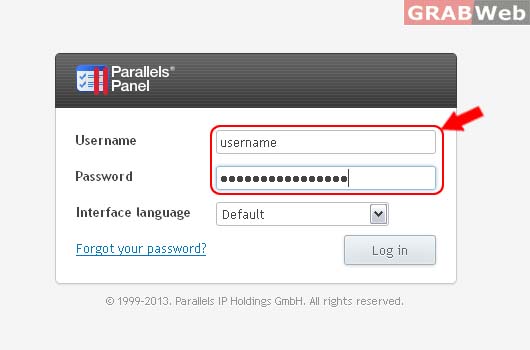
2) Click on Subscriptions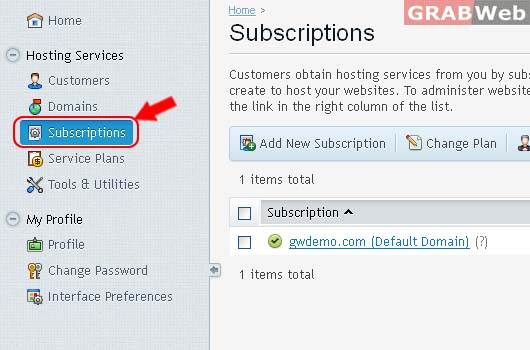
3) Select the corresponding Subscriptions from the list.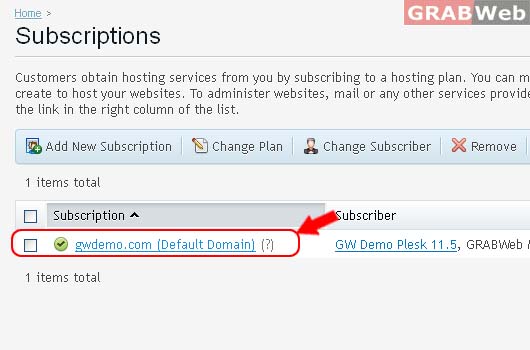
4) Click on Customize button.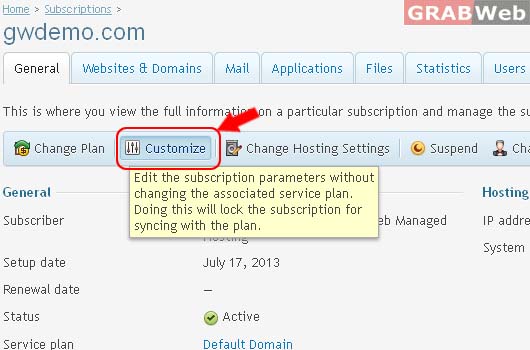
5) Click Resources Tab for Change and allocate Disk space, Sites published with Web Presence Builder, Traffic, Mail, Database and etc.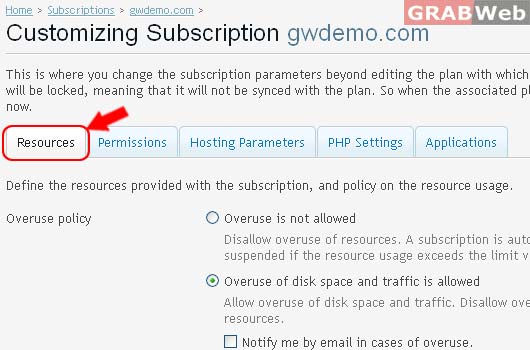
6) Click Permissions for Enable and disable DNS, Mail management and etc.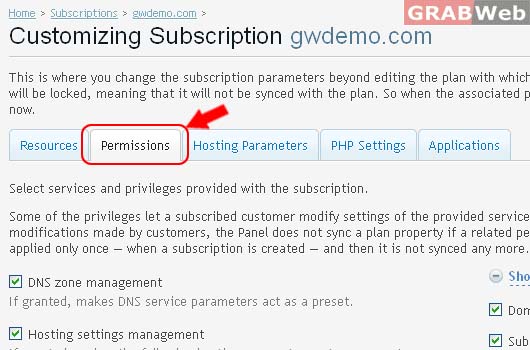
7) Click Hosting Parameters for Status of websites if this subscription is suspended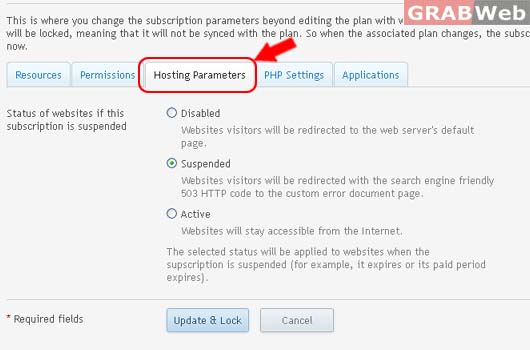
8) Click PHP Settings for Modifiy php setting which is related to php.ini file
Here you can specify per-subscription PHP settings that override the settings defined by the server-wide php.ini file. This may be useful, for example, when you want to limit the system resources consumption by customers' PHP scripts. Customers (if allowed) can override this PHP configuration by their own per-domain configuration. When you set a parameter to the Default value, PHP will use the parameter's value from the server-wide PHP configuration. Note that the following placeholders are supported: {DOCROOT} and {WEBSPACEROOT} stand for the document root directory of a domain and a root directory of a webspace which gets custom PHP configuration; {TMP} stands for the directory which stores temporary files. Your current PHP version is 5.3.10.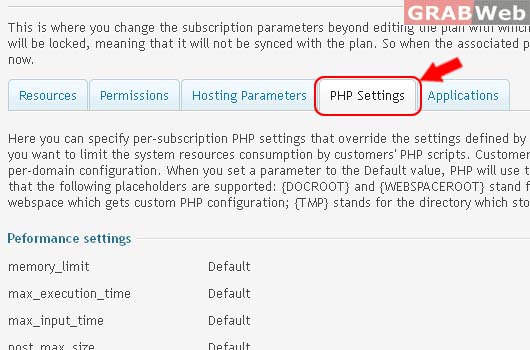
9) Click Applications for Install, Remove and Modify Applications.
Select the applications that should be available in the subscription. You can choose to provide all applications available from the Application Catalog, plus those that you uploaded to the server, or select the applications manually. If you want to provide all available applications, then you do not need to do anything on this tab, just go to the Permissions tab and select the Access to Application Catalog option. If you want to select applications manually, you can do it on this tab.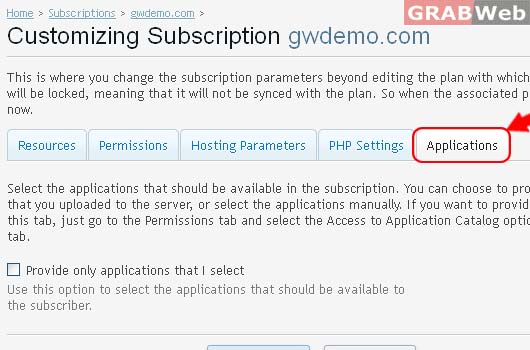
10) Click Ok or Unlock & Sync.