1) Login to Plesk control panel.

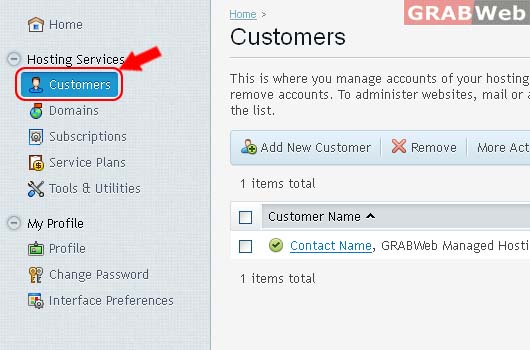
2) Click on "Customers"
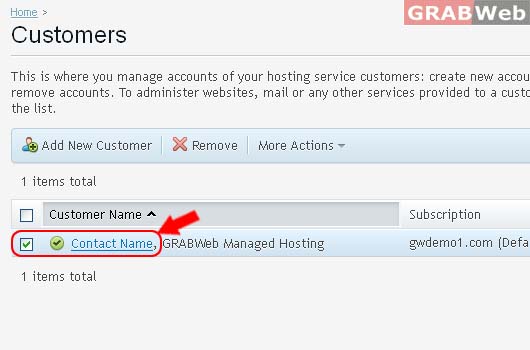
3) Select the "Customers" from the list.
4) This is where you manage a particular customer account.
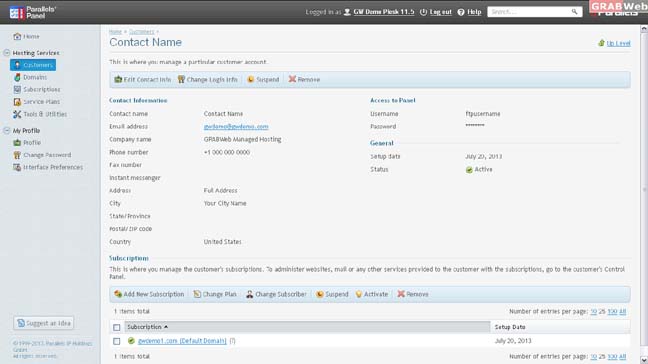
5) Click Edit Contact Info.
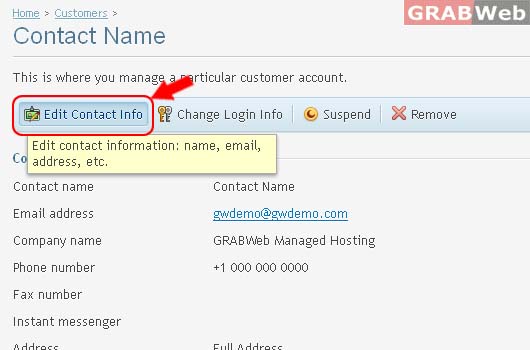
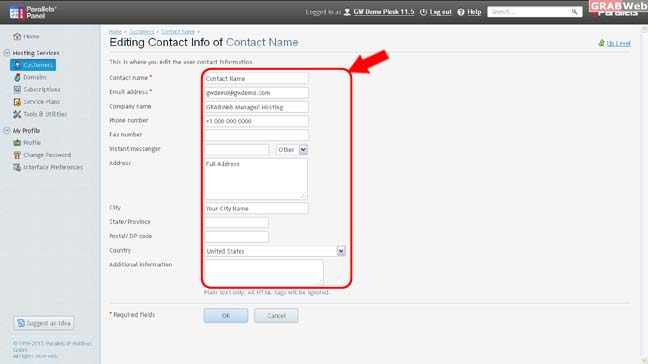
a) Editing Contact Info of Customer Account.
Edit Contact Info lets you update the customer's contact information: name, e-mail, address, phone, and so on.
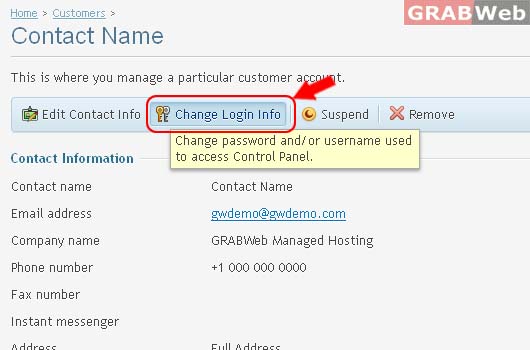
6) Click on Change Login Info of Customer Account.
Edit Login Info lets you change the customer's username and password.
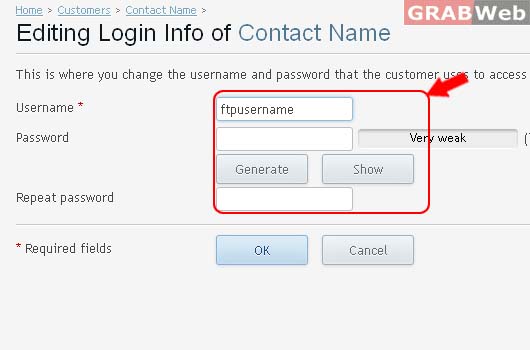
a) Editing Login Info of Customer Account.
This is where you change the username and password that the customer uses to access their Control Panel.
Information: Login information was updated.
7) To Suspend Customer Account Click on Suspend.
If you want to stop serving a customer, for example, if they do not pay for your services, you may suspend the customer's accounts - block access to the Control Panel for this customer and users that they created. To suspend an account, click Suspend on the customer details page. In addition to suspending the account, this will suspend all its subscriptions making the customer's websites, FTP and mail services unavailable to the Internet users.
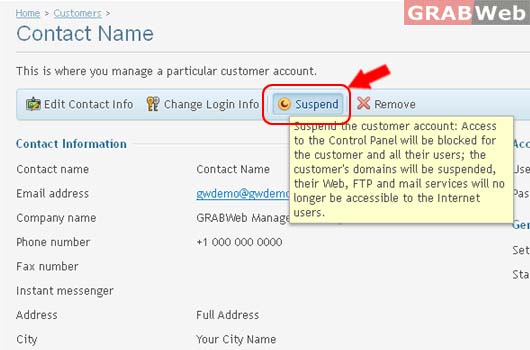
Information: The account was suspended.
Later you will be able to cancel the suspension by clicking Activate on the customer details page.
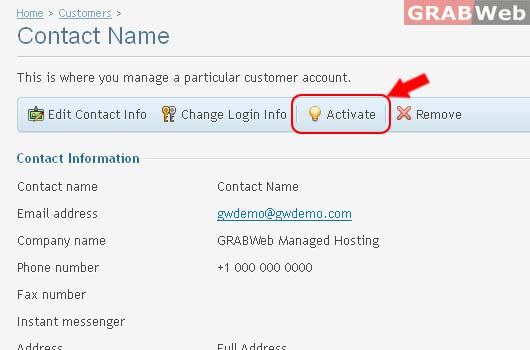
You can also suspend multiple accounts at once or activate multiple suspended accounts. To do this, select the accounts that you want to suspend or activate at the Customers page and choose the appropriate action from the More Actions menu.
8) To Remove Customer Account with all subscritions Click on Remove.
To remove customer account and all subscriptions belonging to them, select these accounts at the Customers page and click Remove.
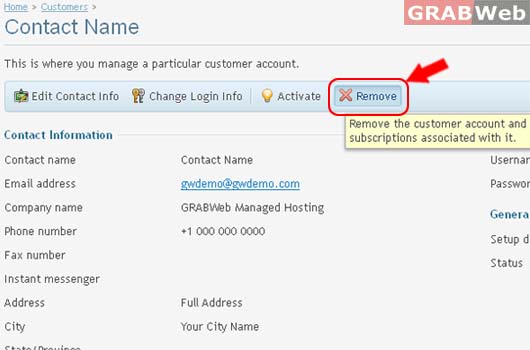
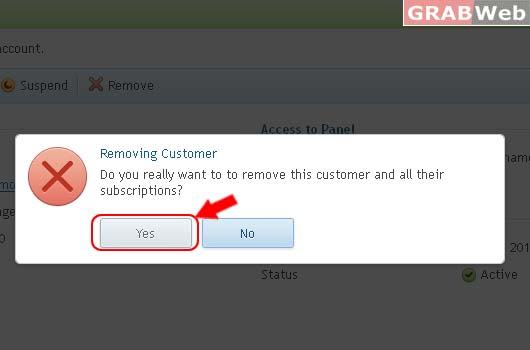
a) Do you really want to to remove this customer and all their subscriptions?