Summary Report
View reports on resource usage by users and subscriptions.
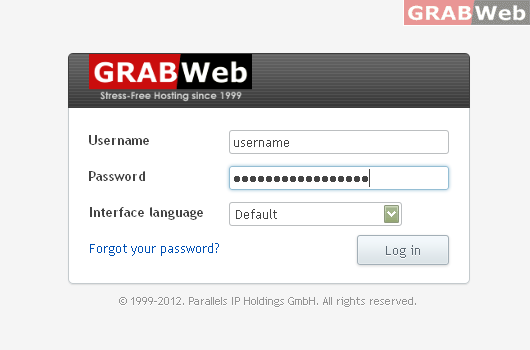
1) Login to Plesk control panel.
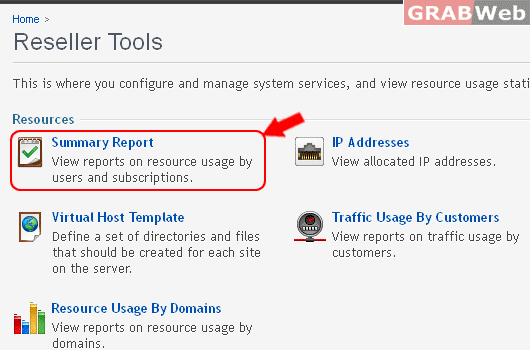
2) Click Tools & utilities and then click on Click on Summary Report
3) To View Traffic History, Click on View Traffic History.
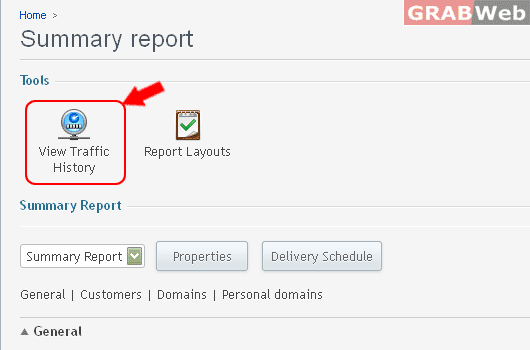
There you can see Traffic details as marked in RED

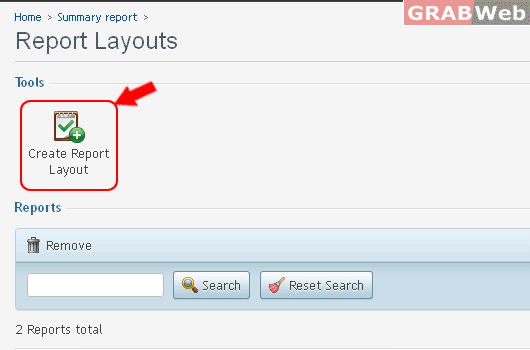
4) To Manage Reports Layouts, Click on Report Layouts.

5) There you can see list of Layouts Name.

6) To Create your own Layout Report, Click on Create report Layout.
7) Follow the Radio Buttons, Check box and Layout Name.
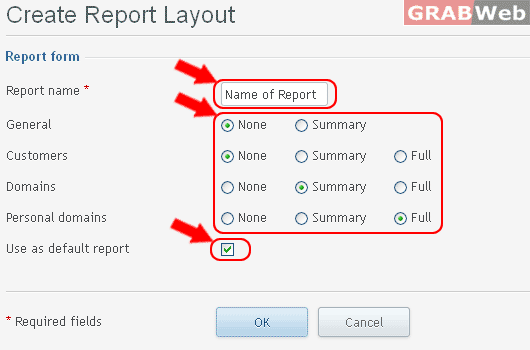
8) Click Ok.
Information: New report layout was created.
9) To Remove Layouts, Select Layout from the list and Click on Remove Button.
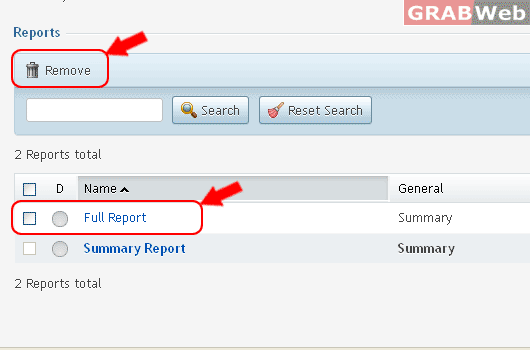
10) Click on Check box Confirm removal, Click Ok.

Information: ui__reseller/report/layout/delete_multi__done
11) To View a Full Report or Summary Report on Screen, Follow Marked steps.
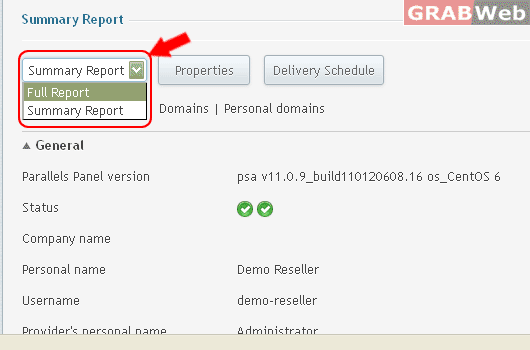
12) To Check Properties of Current Layout, Click on Properties.

13) Check and Manage Current Layout Properties.
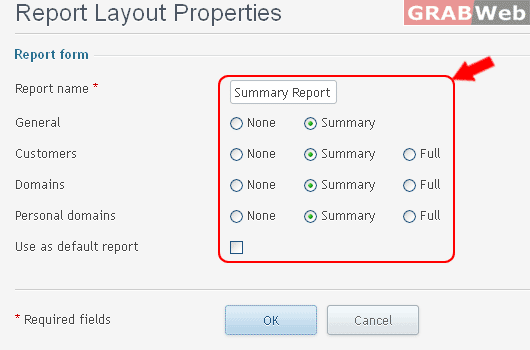
14) Click Ok.
Information: Report layout was changed.
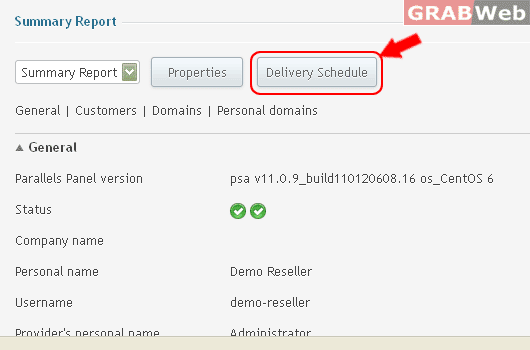
15) To Set a Delivery Schedule of Your Summary Report, Click on Delivery Schedule
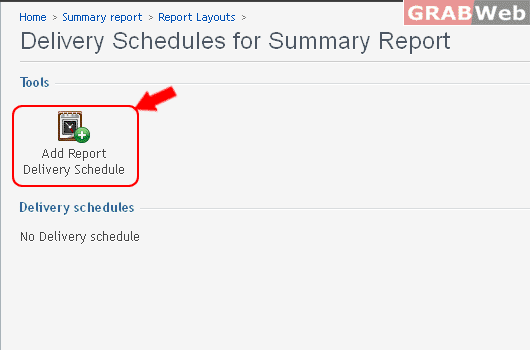
16) To Create Report Schedule, Click Add Report Delivery Schedule.
17) Follow the marked points.
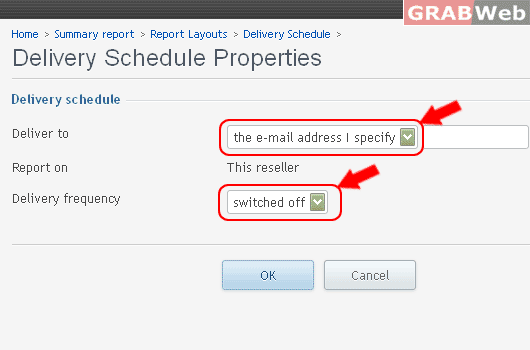
18) Click Ok.
Information: Report delivery schedule was added.
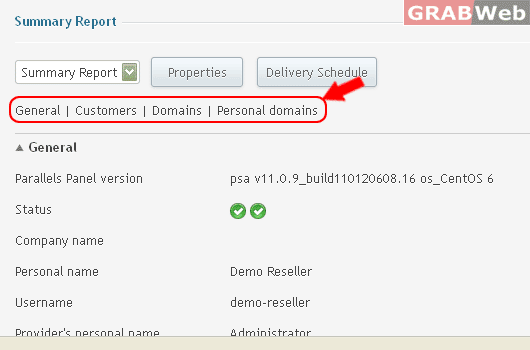
19) To View a Report on Screen with following options.
- General Detail
- Customers Details
- Domains Details
- Personal domain
20) To get a Summary Report Via E-mail, Enter your email address and Click on Send by E-mail.
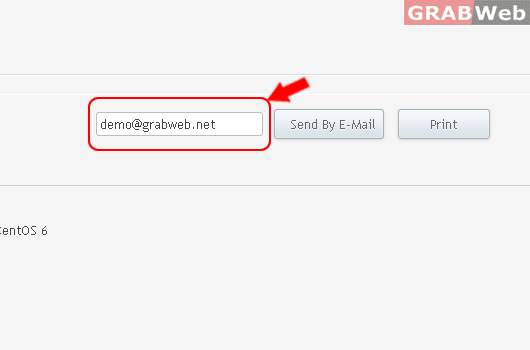
Information: The report was sent to your@emailaddre.com
21) To Make a Print of your Current Report., Click on Print Button.
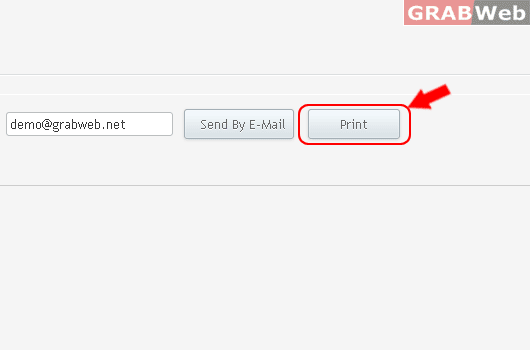
You will get a new pop up and Press Ctrl+P.