
Install and manage web applications on your websites. WordPress , forums, photo gallaries, collaboration tools, and many more installed in several clicks.
Please follow the following steps:
1) Login to Plesk control panel.

2) Click on Websites & Domains.

3) Click on Domain Name as marked in RED.

4) Click on Applications. [SEE FULL VIEW]

5) See Following options
a) Featured Applications
b) Click on Install (Custom) as marked in RED.

c) Click on I accept the terms of License Agreemnt.
d) Select the domain under which you want to install this application and the directory under which you want to install.
e) For Enable automatic update Installed Web Applications, Click on the checkbox as marked in RED.
Automatically update this app when updates are available.

f) Enter the following details for Administration Access
Password :- it will be the Admin password.
Administrator's email :- It will be email address for Admin.
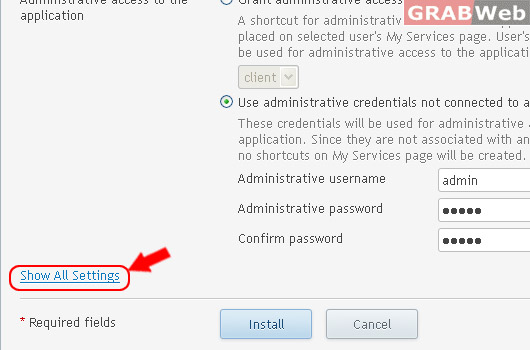
g) Click on Show All Settings for manage Database and Site name, Administration detail.
h) You may change and see details as marked in RED.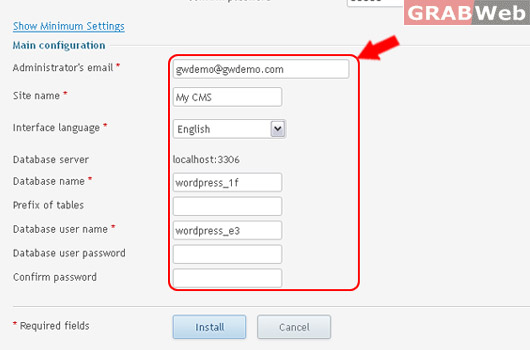
i) Click on Install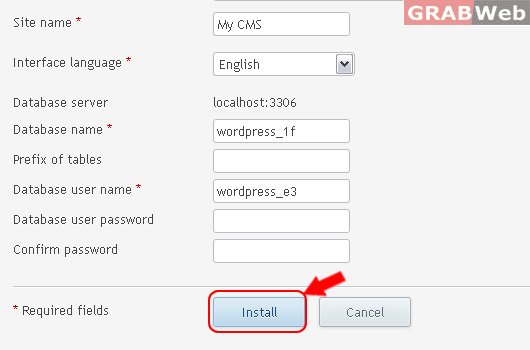
Information: WordPress was successfully installed at http://gwdemo.com/wordpress.

![[SEE FULL VIEW]](https://manage.grabweb.net/img-kb//plesk11.5/reseller/Subscriptions/webanddomains/applications/applications-overview.jpg)