
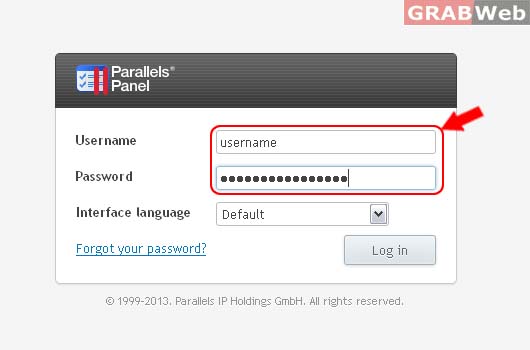
1) Login to Plesk control panel.
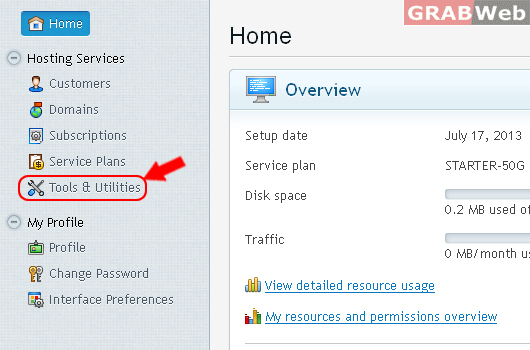
2) Click Tools & Utilities
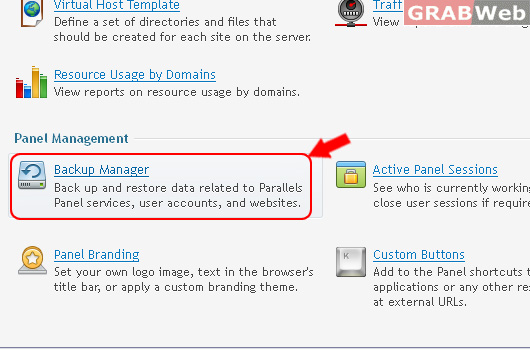
3) Click on Backup Manager
4) Click on Backup
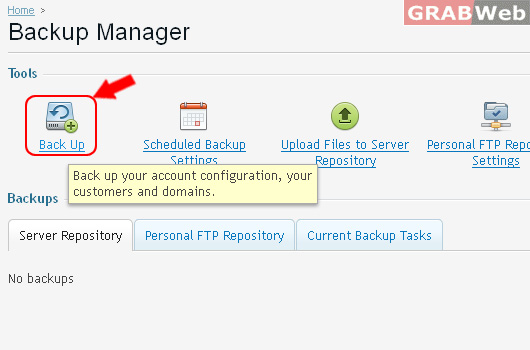
a) Enter Following details as marked in RED.
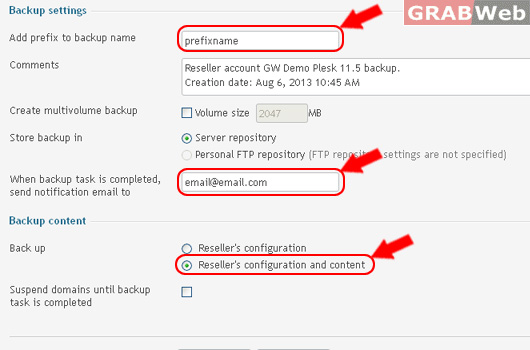
5) Click Back Up Button.
Information: The process of backing up your data was started.
a) If you entered above said details and after some time you will see a completed task as marked in RED.
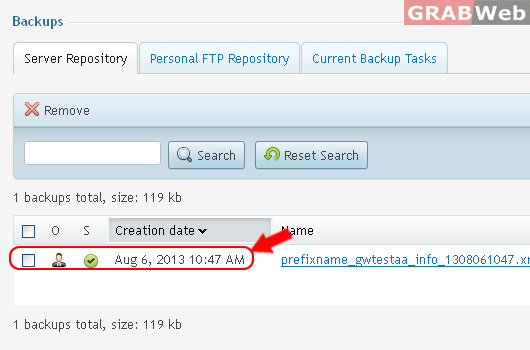
6) To Download Backup file Click on Save Icon.
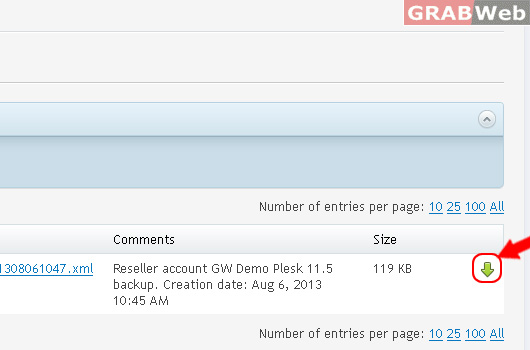
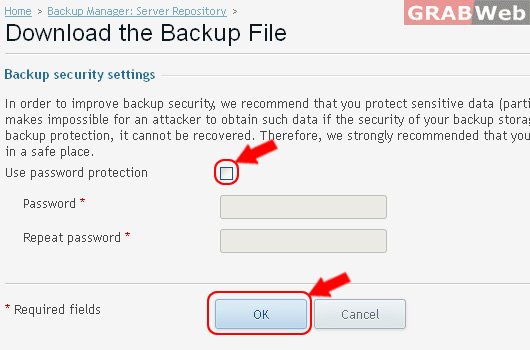
a) Download the Backup File.
In order to improve backup security, we recommend that you protect sensitive data (particularly, passwords) included into the backup with a password. This makes impossible for an attacker to obtain such data if the security of your backup storage is compromised. Note that if you forget your password you use for backup protection, it cannot be recovered. Therefore, we strongly recommended that you keep the list of your passwords and corresponding backup file names in a safe place.
7) To Manage Scheduled Backup Settings, Click on Scheduled Backup Settings.
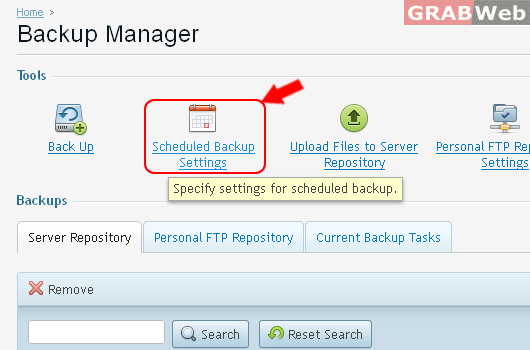
8) Enter the following details as marked in RED. [FOR FULL VIEW]
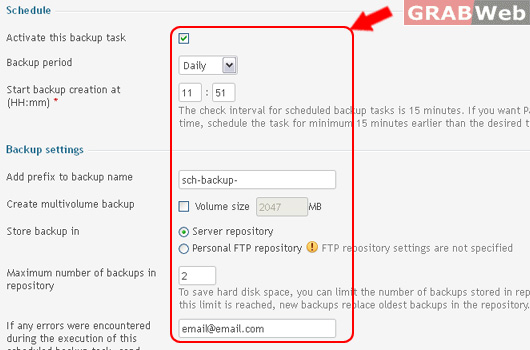
9) Click Ok.
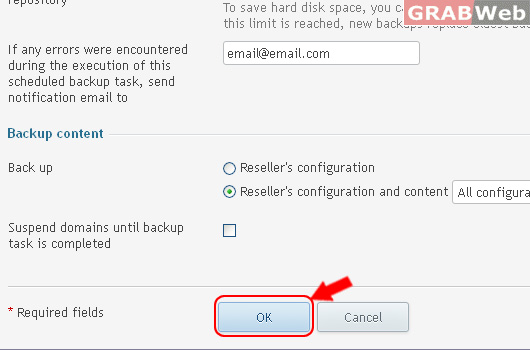
Information: Backing up of your account was scheduled.
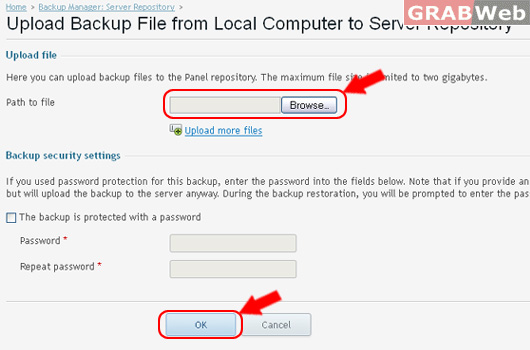
10) To backup file to Server Repository, Click on Upload Files to Server Repository.
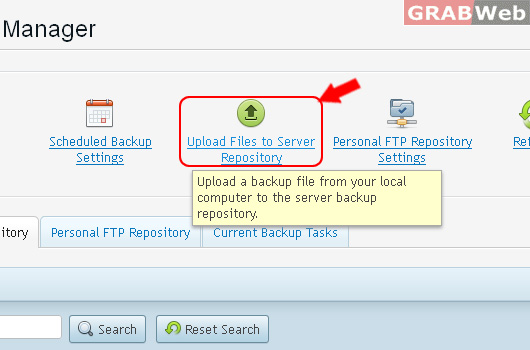
11) Locate a file from Local computer, Click Browse. If the backup file with Password protected, so please enter a password.
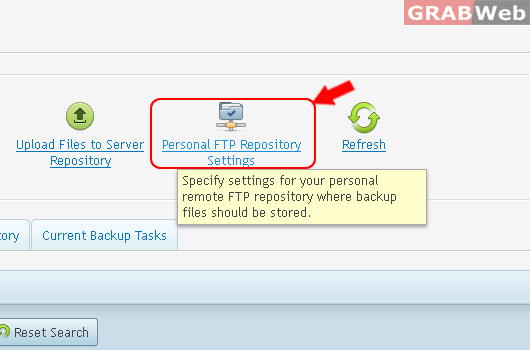
12) To Take a backup on FTP Repository, Click on Personal FTP Repository Settings Button.
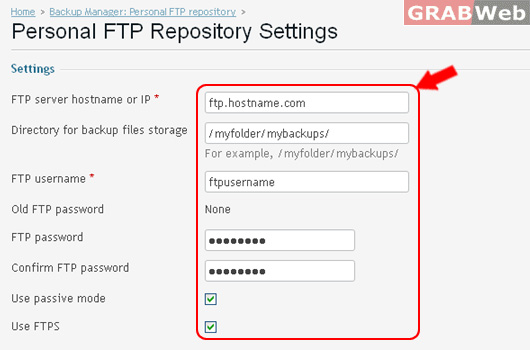
13) Enter FTP details for destination location. As marked in RED. [FULL VIEW]
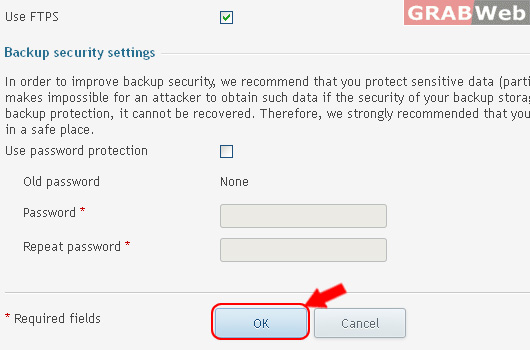
14) Click ok.
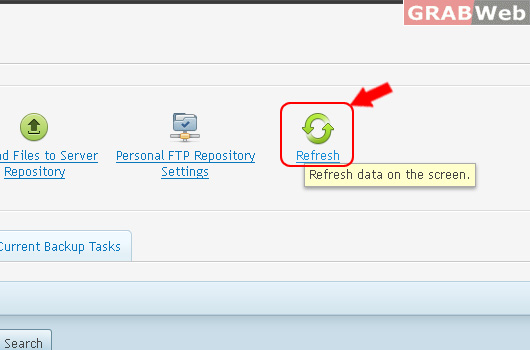
15) To Refresh a Backup Manager Screen, Click on Refresh.
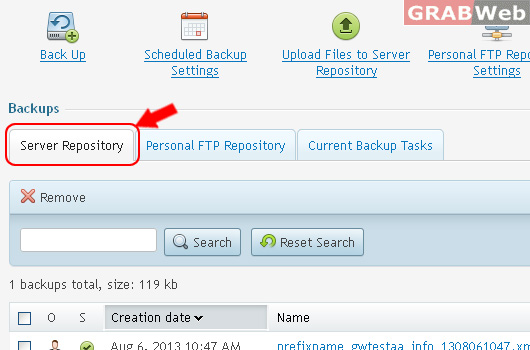
16) To Check Backup Completed list on Server Repository, Click on Server Repository Tab.
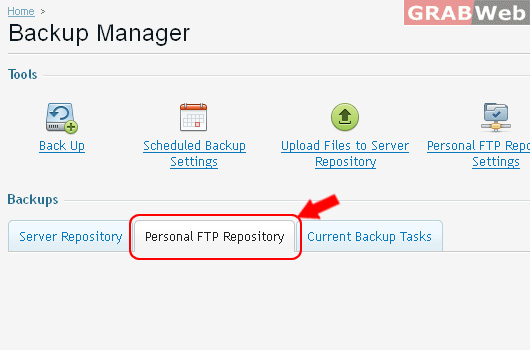
17) To Check Backup Completed list on Personal FTP Repository, Click on Personal FTP Repository Tab.
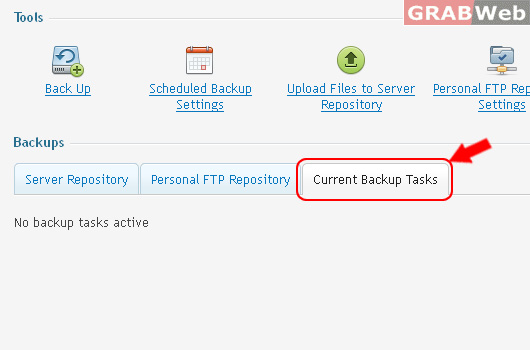
18) To see Current Backup Tasks, Click on Current Backup Tasks

![[FOR FULL VIEW]](https://manage.grabweb.net/img-kb/plesk11.5/reseller/resellertols/backupmanager/10backupmanager.jpg)
![[FULL VIEW]](https://manage.grabweb.net/img-kb/plesk11.5/reseller/resellertols/backupmanager/17backupmanager.jpg)