View Cart
0
EUR
USD
GBP
EUR
INR
AUD
CAD
SGD
Products
Shared Hosting
Managed Cloud VPS
Dedicated Servers
Junk Freezer
SSL Certificates
BUSINESS EMAIL HOSTING
Reseller Hosting
Domains
Register a New Domain
Transfer Domains to Us
-----
Domain Pricing
Website & Security
Support
Contact Us
-----
Network Status
Knowledgebase
News
Login
Plesk 12.5 : How to change account password ?
Portal Home
Knowledgebase
2) Plesk 12.5
Users Tutorials
Plesk 12.5 : How to change account password ?
Support
My Support Tickets
Announcements
Knowledgebase
Downloads
Network Status
Open Ticket
To Change reseller account password follow the following steps:-
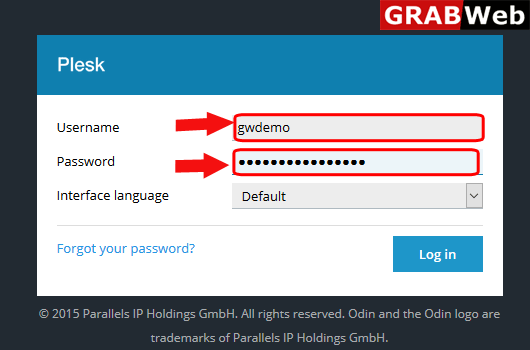
1) Login to
Plesk control panel
.
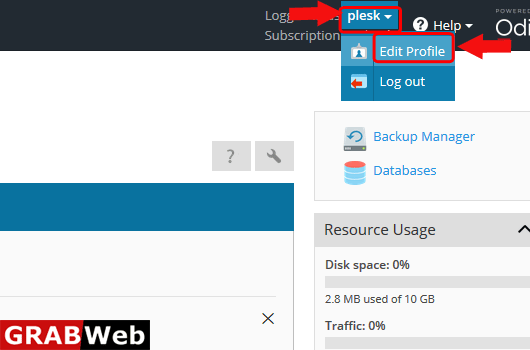
2)At the right hand side above click on
Plesk
then
Edit Profile
.
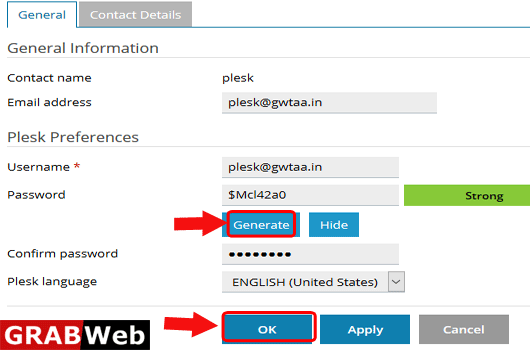
3)Clcik on
Generate
for new password then
Show
and at the end click on OK.
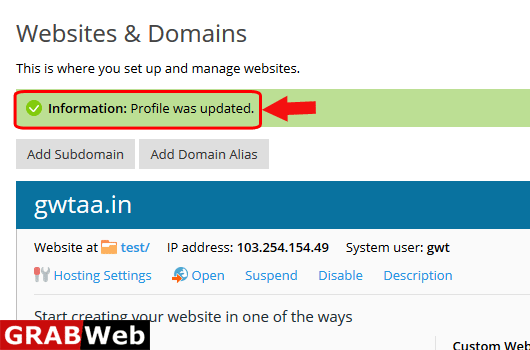
4)Here you can see the
Information:Profile was updated
.
Was this answer helpful?
0 Users Found This Useful (0 Votes)
Yes
No
Most Popular Articles
Plesk 12.5 : How to edit profile of owner ?
To edit profile follow the following steps:-1)Login to Plesk control panel.2)Click on Plesk then...
Generate Password
Please enter a number between 8 and 64 for the password length
Password Length
Generated Password
Generate new password
Copy