If you are subscribed to several hosting packages and have access to several webspaces associated with your account, in the Subscription menu at the top of the screen, select the required webspace.
1) Login to Plesk control panel.

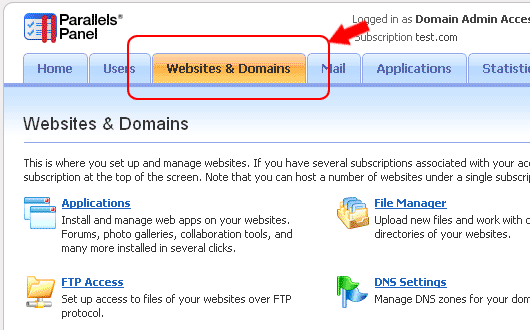
2) Click the Websites & Domains tab.
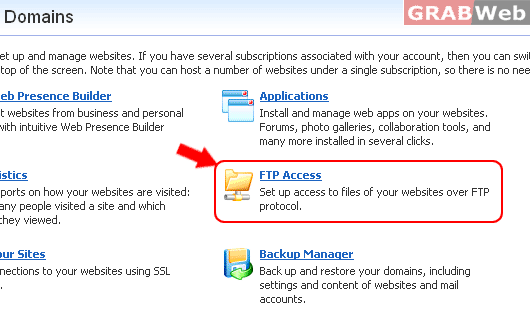
3) Click FTP Access.
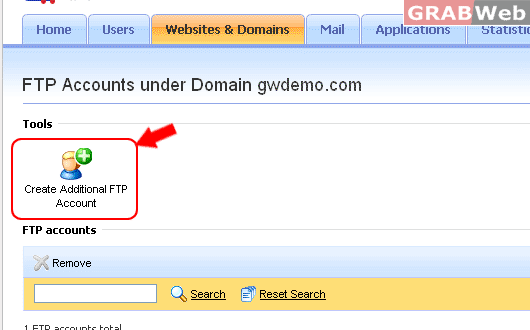
4) On the Additional FTP Accounts tab, click Create Additional FTP Account.
5) Specify the following:
- FTP account name. Type an arbitrary name.
Home directory. Select the directory to which the user will be taken when he or she connects to the FTP account. - FTP password.
- Hard disk quota (on Windows hosting). To limit the amount of disk space on the server that the FTP user can occupy, clear the Unlimited checkbox next to the Hard disk quota box, and type the amount of disk space in megabytes.
- Read permission (on Windows hosting). To allow the FTP user to view the contents of the home directory and download files from it, select the Read permission checkbox.
- Write permission (on Windows hosting). To allow the FTP user to create, view, rename and delete directories in the home directory, select the Write permission checkbox.
On Window hosting, if you do not grant any permissions, a connection to the FTP account will be made, but the contents of the home directory will not be shown to the user.

6) Click OK.
For Flash Tutorial : Click Here.