Please follow the following steps:
1) Login to Plesk control panel.

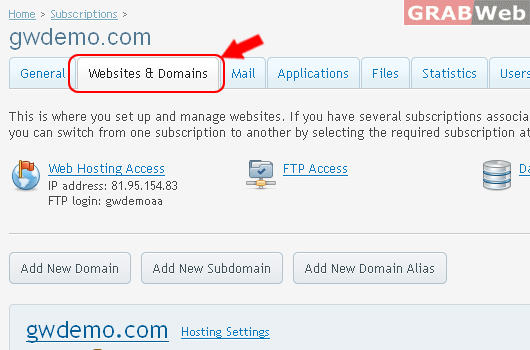
2) Click on Websites & Domains.
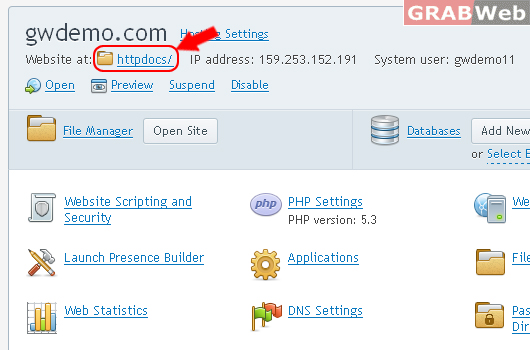
3) Click on httpdocs as marked in RED.
a) Then see File Manager as below.

4) Check Hot buttons of file manager.
Upload files, Make new files , folders , Copy , Move , Remove and More Action.
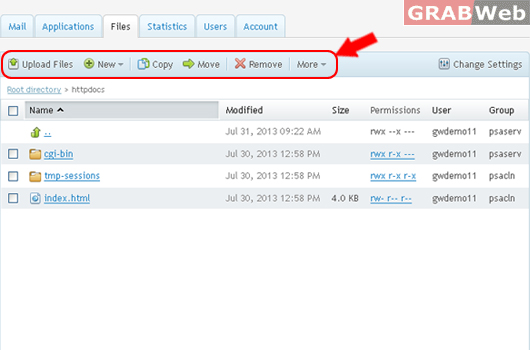
5) To upload any type of file, Click on Upload Files and browse the files.

6) To Make New files, Click on New and select
New
Directory
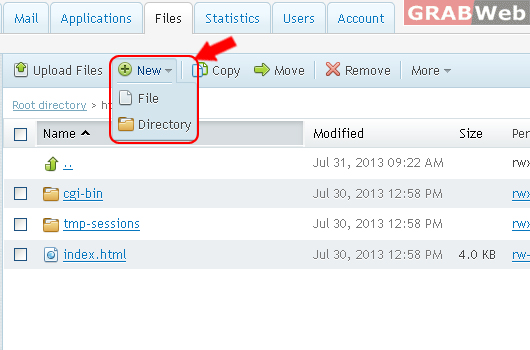
7) Create a File Type File name as marked in RED.
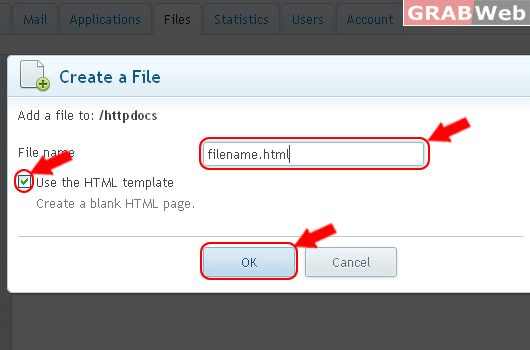
filename.html was successfully created.
8) Create a Direcotry
Type Directory name as marked in RED.
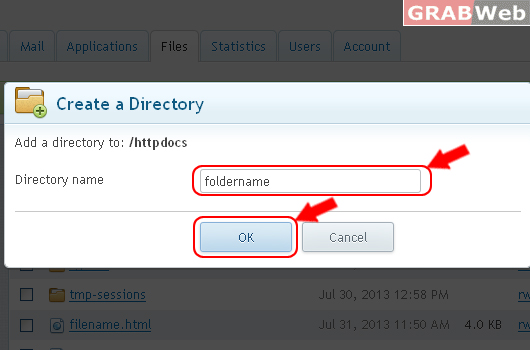
The foldername directory was successfully created.
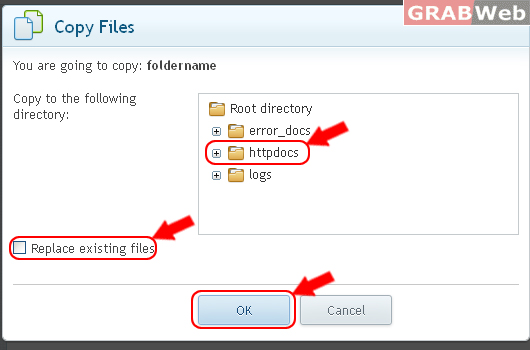
9) To Copy selected files to another directory as marked in RED.
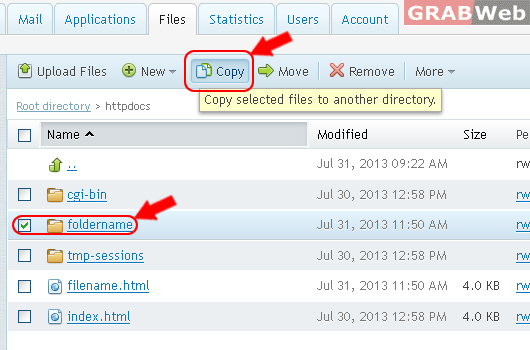
Selected files and directories were successfully copied.
10) Choose path to copy as marked in RED.
Selected files and directories were successfully moved.
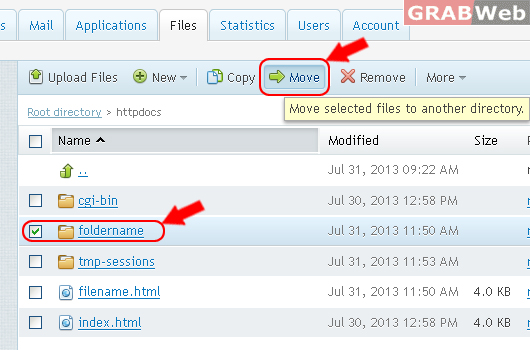
11) Move selected files to another directory.
Follow the marked steps in RED.
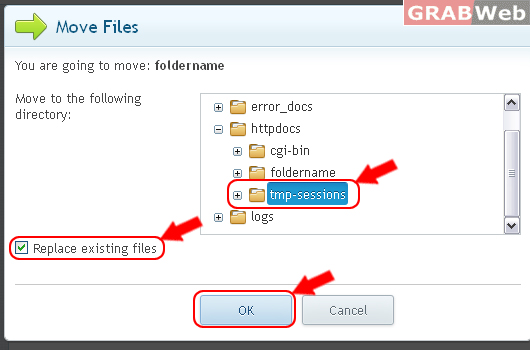
Select the location and click Ok.
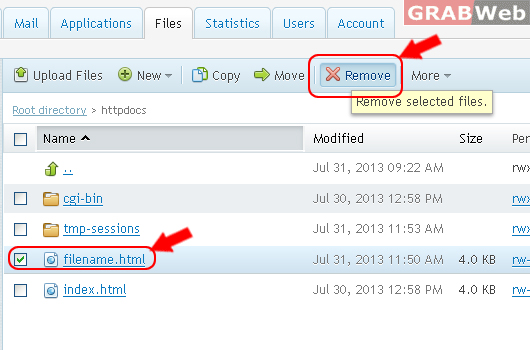
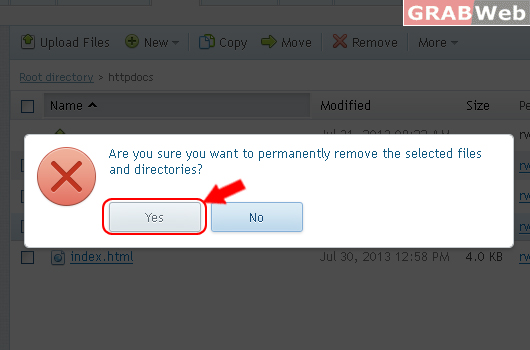
12) Remove selected files.
Select the files, Click Remove.
13) Are you sure you want to permanently remove the selected files and directories ?
Cick Yes.
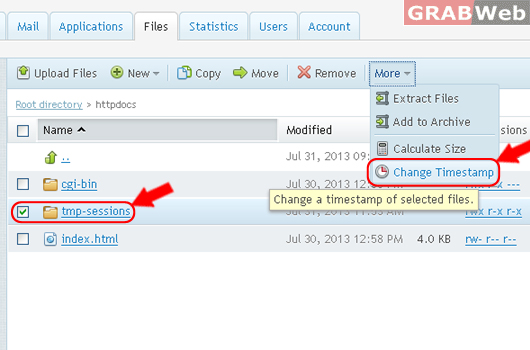
14) To More actions, Extract files ( zip files ) Add to Archive, Calculate Size, Change Timestamp.
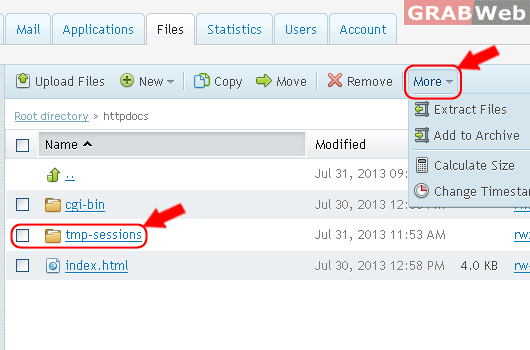
15) To Extract the zip files.
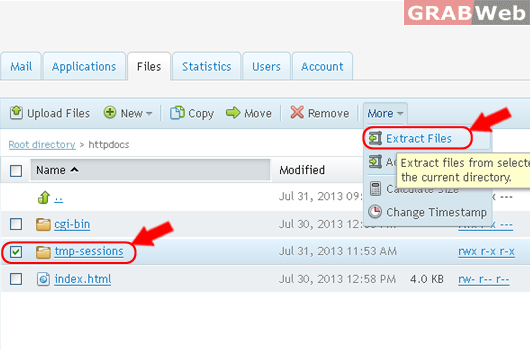
16) Make Archive files, follow steps as marked in RED.

17) Calculate the total size of selected files.
Select the files from the list and click Calculate Size.

18) To Change time timestamp of files,
Select the files / folders from the list and click Change Timestamp.
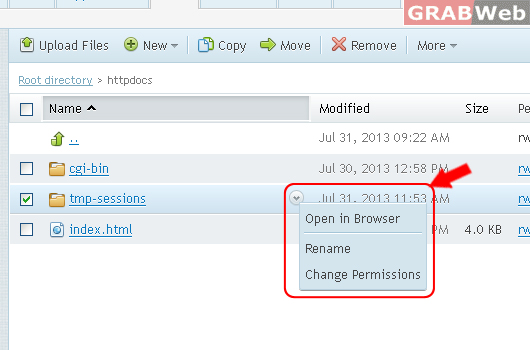
19) To Edit, Open in Browser, Rename, Change Permissions.
- Select the files from the list and click on Rename.
- Select the files from the list and click on Open in Browser.
- Select the files from the list and click on Change Permissions.