Please follow the following steps:
1) Login to Plesk control panel.

2) Click on Websites & Domains.

3) Click on domain name.

a) See all the buttons related to domain.

b) Hosting Settings

c) Rename Domain
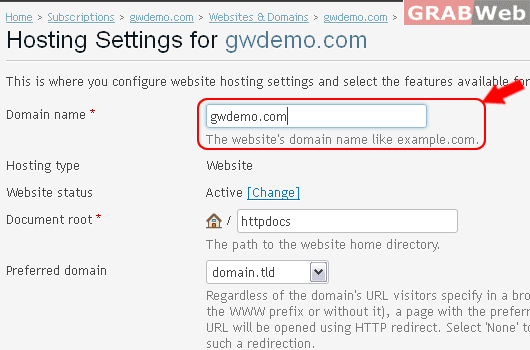
d) Hosting type
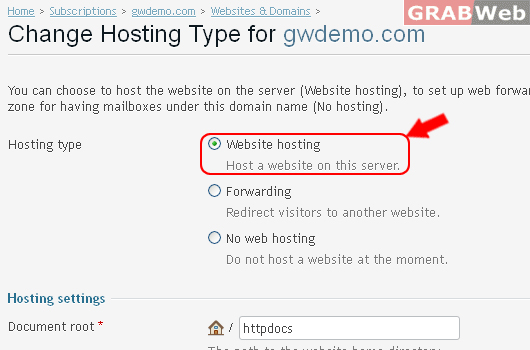
You can choose to host the website on the server (Website hosting), to set up web forwarding to another website (Forwarding), or to use the domain's DNS zone for having mailboxes under this domain name (No hosting).
i) Click on Change

ii) Website hosting
Host a website on this server.
iii) Forwarding
Redirect visitors to another website.

Information: The hosting type for gwdemo.com was successfully changed.
iv) No web hosting
Do not host a website at the moment.
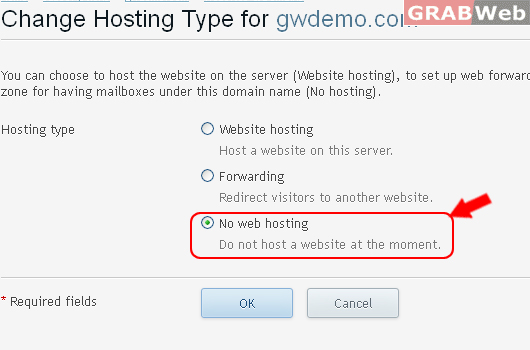
Information: The hosting type for gwdemo.com was successfully changed.
Website status
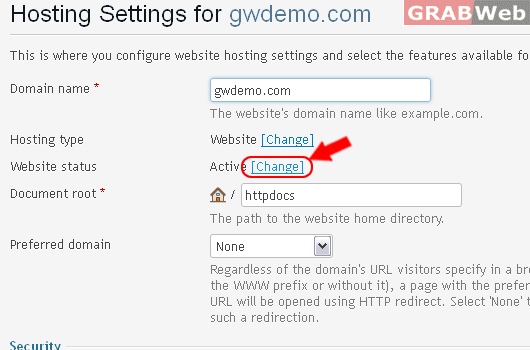
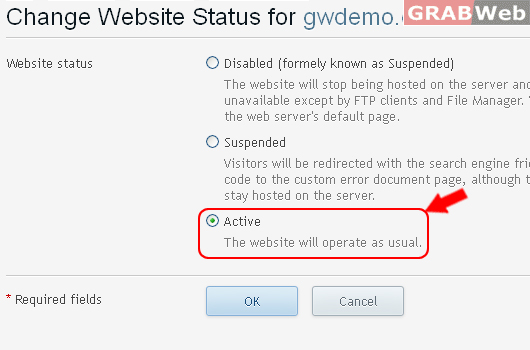
i) Active
The website will operate as usual.
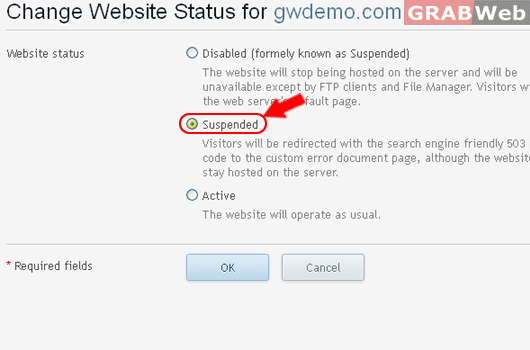
ii) Suspended
Visitors will be redirected with the search engine friendly 503 HTTP code to the custom error document page, although the website will stay hosted on the server.
iii) Disabled (formely known as Suspended)
The website will stop being hosted on the server and will be unavailable except by FTP clients and File Manager. Visitors will see the web server's default page.

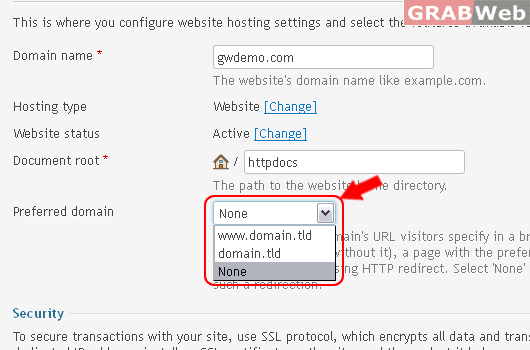
Preferred domain
Regardless of the domain's URL visitors specify in a browser (with the WWW prefix or without it), a page with the preferred domain URL will be opened using HTTP redirect. Select 'None' to turn off such a redirection.
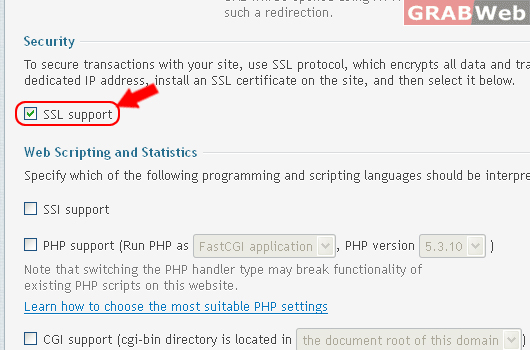
Security
To secure transactions with your site, use SSL protocol, which encrypts all data and transfers it over a secure connection. To employ SSL, move this site to a dedicated IP address, install an SSL certificate on the site, and then select it below.
Web Scripting and Statistics
SSI Support
PHP support
CGI support
Apache ASP support
FastCGI support
Web statistics
Custom error documents

Information: The settings were successfully updated.