To Define a set of directories and files that should be created for each site on the server, Please follow the following steps :-
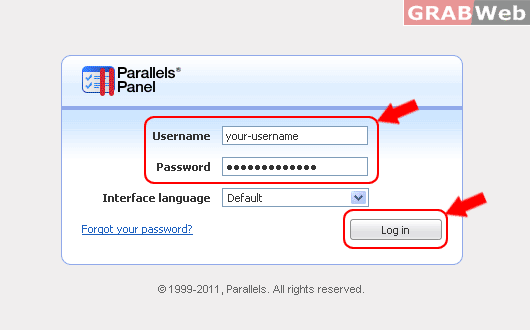
1) Login to Plesk control panel.
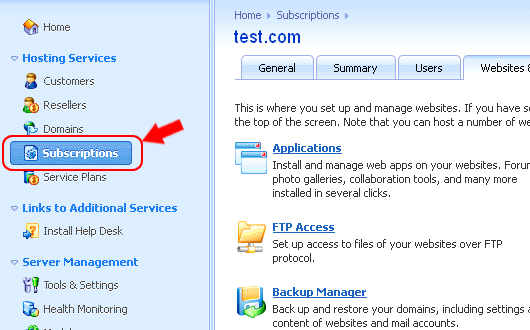
2) Click on "Tools & Utilities".
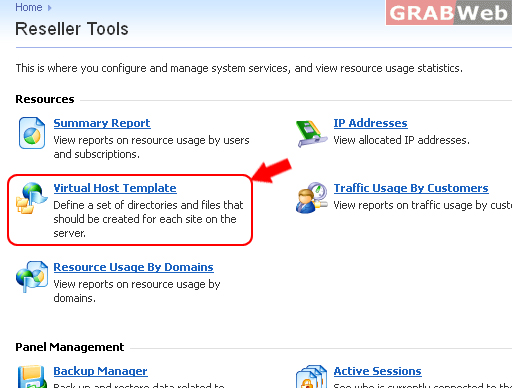
3) Click on "Virtual Host Template".
4) Make directories as following name:
a) httpdocs > index.html ( with your oewn design ) and then click on "Browse..." and then click on "Send File button"
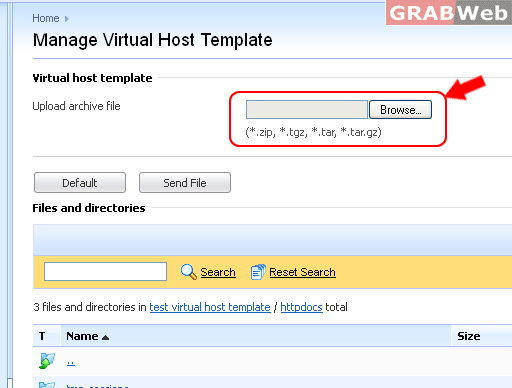
Prepackaging Branded Default Site Pages with Virtual Host Template
Note :
You can configure the Panel to automatically include specific files and directories into webspaces created for newly hosted websites. This can be a set of useful scripts, custom error messages, a placeholder index.html page, or any other files of your choice. These files can then be replaced, edited or removed on a per-site basis.
To set up the Panel so as to automatically include your Web content into webspaces:
On your local file system, create the required directories: httpdocs, cgi-bin, anon_ftp, error_docs.
Place the files you need into the directories you have created: Place Web pages into httpdocs directory, scripts to cgi-bin directory, and custom error messages to error_docs directory. Pack the directories and files into an archive file in tgz, tar, tar.gz, or zip format.
Make sure that the directories are in the root of the archive file and not in a subdirectory.
Log in to your Parallels Plesk Panel.
Go to Tools & Utilities > Virtual Host Template.
Click the Browse button to locate the archive file on your local computer, select the file, and click the Send File button.
To revert back to the original structure of Web server directories and files:
Go to Tools & Utilities > Virtual Host Template.
Click the Default button.
For Flash Tutorial : Click Here.